 SiteView help
| SiteView help
|
USB Device Server Connection is for the communications with data
loggers via USB Device Server over LAN/Internet or a PRECISE-LOG WIFI data
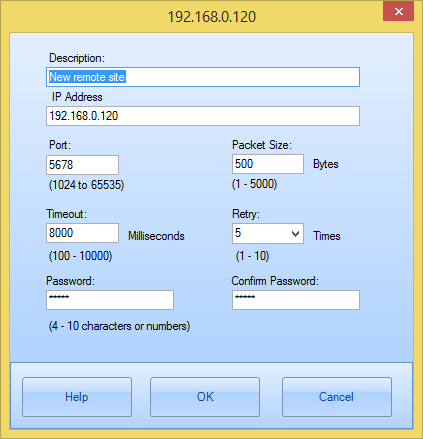
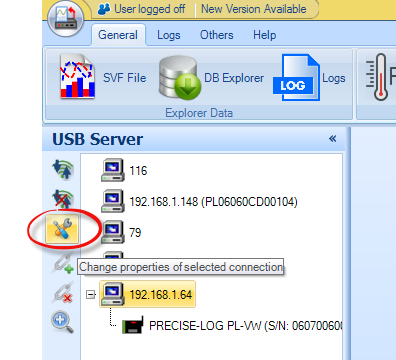
logger. You may change
the settings of the selected connection by clicking on the Configuration
button: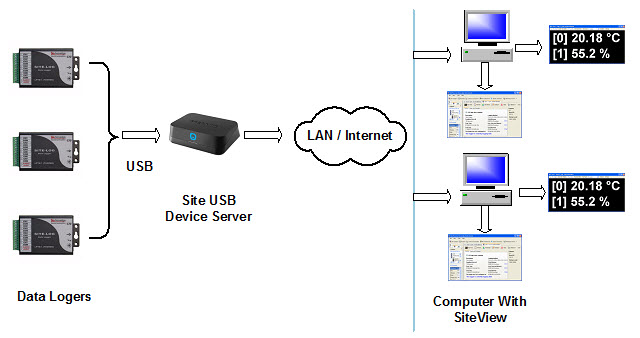
Start Communication:
Launch
SiteView application by double clicking on SiteView
icon on the desktop:

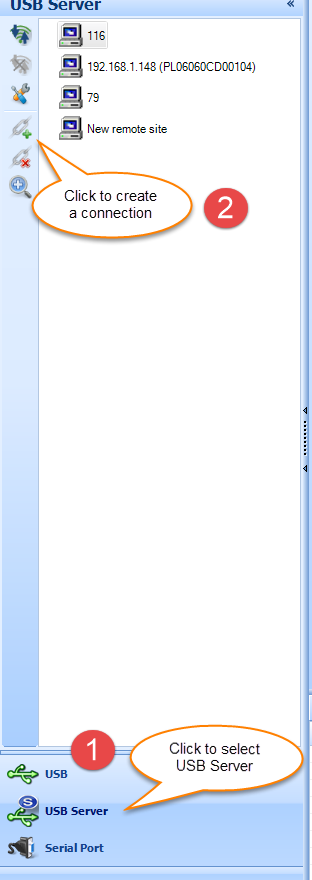
Click
USB Device Server tab in the Communication panel and click Add button to add a
new connection:
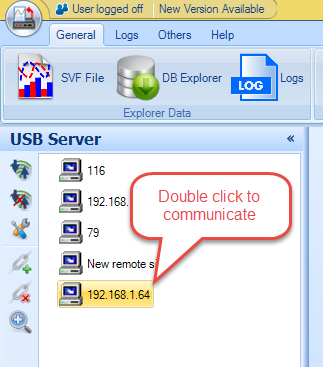
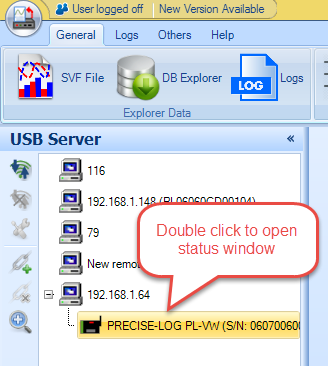
Double click on the icon to start the communication. If the communication
is successful the logger's icon will appear under the connection you just
created. Double click on the logger icon the logger status page will
appear.
Adjust Settings:
You can let the system to search for Site USB Device Servers and add them to the list automatically.
(For PRECISE-LOG WIFI data loggers, after the logger is connected to your router/server, the logger status window shows the IP address of the logger. You can manually add a connection with that IP address)
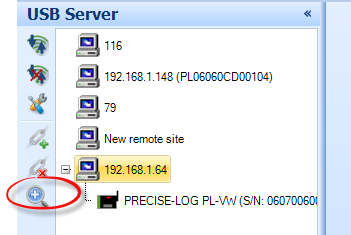
Click on "Search" button.
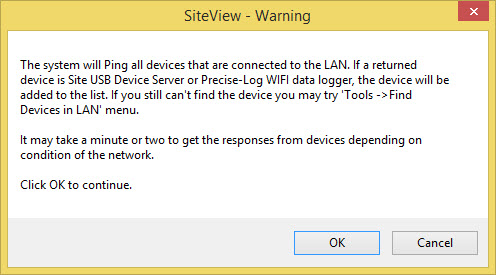
Click "OK" to continue. Within 30 seconds if a connection was found it will be added to the list:
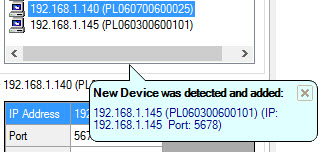
Some network system may not be able to return the device information. In this case, you can use another tool in SiteView to locate IP address based on the MAC addresses returned by the system router.
Click "Find Device in LAN" under "Others" ribbon control:

In the pop-up dialog, click "Search" button to find the device. On the bottom side of USB Device Server (DSS-2), you can find the MAC address. Try to locate the IP address with the matching MAC address in the returned list:
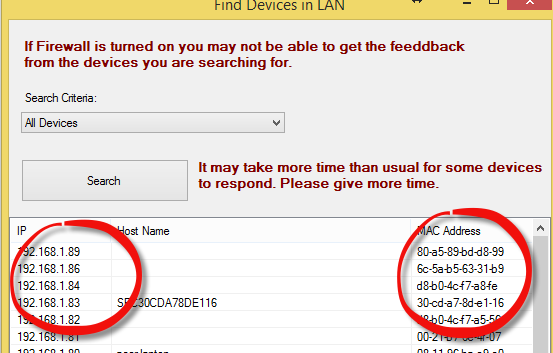
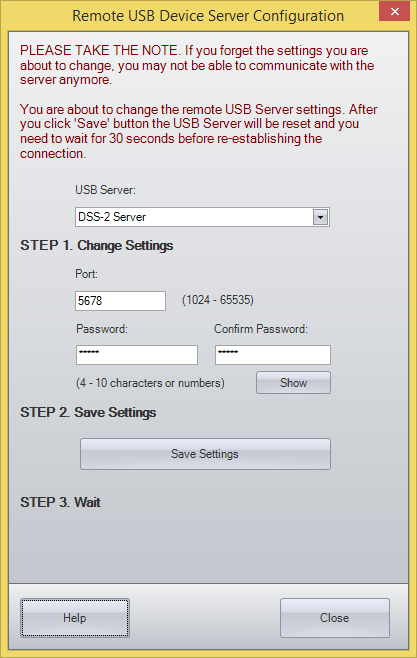
DSS-2 USB Device Server is password protected and it can be changed by the following steps. (Please take the note for what you are about to change. You may not be able to communicate with the server if you lose those setting values)
1. Double click the connection to connect to the server first:
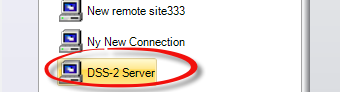
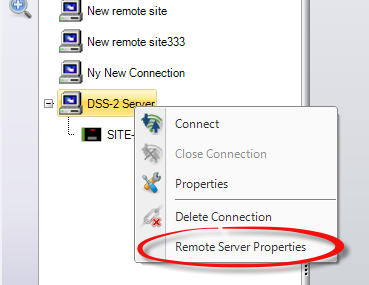
2. Right click on the connection and click "Remote Server Properties" menu item:
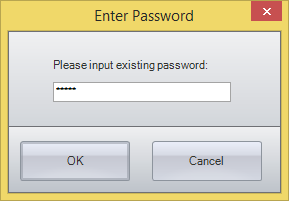
3. Enter the existing password:
4. Change the settings and click "Save Settings" button:
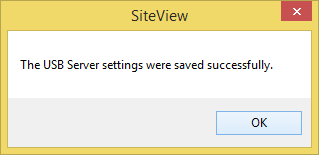
5. Click OK to close the confirmation:
6. Wait until the timer ends:
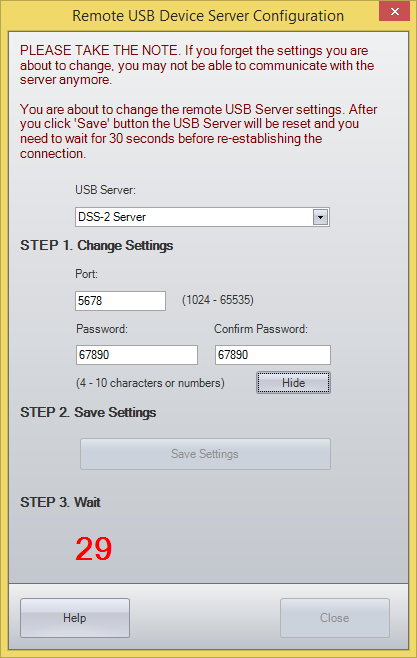
You have successfully made the changes for the remote USB Device Server. In order to connect to the remote server, you need to change the settings of the connection to match those changes.
7. Click on the Properties of the context menu:
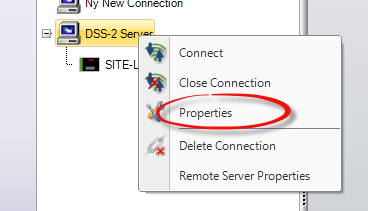
In the pop-up dialog, change the settings:
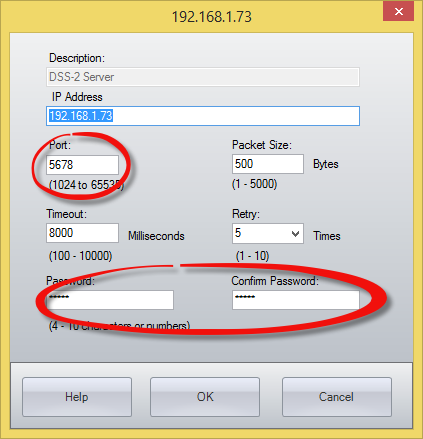
Then you can connect the server by double clicking on the connection.