 SiteView help
| SiteView help
|
Unit
Category dialog can be displayed by clicking on
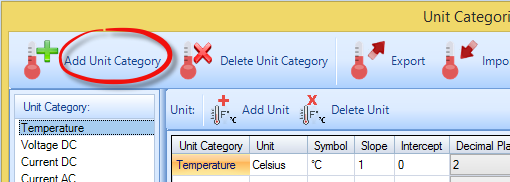
Unit Category main tool bar button. Add New Unit
Category dialog is display by clicking on Add
Unit Category tool bar button. Export
Units dialog is displayed by clicking on Export
Units tool bar button. Import Units dialog
is displayed by clicking on Import Units tool bar
button.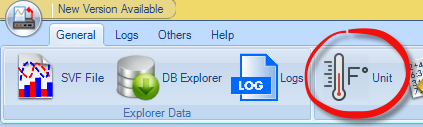
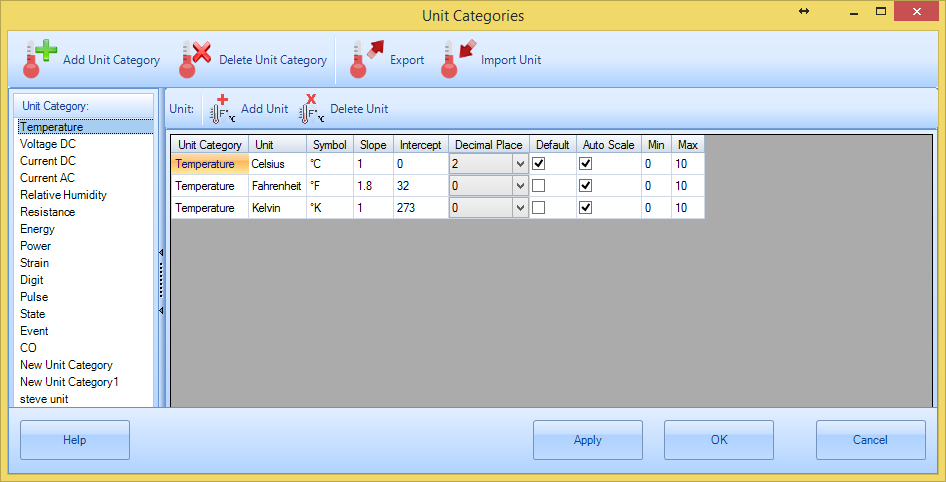
Tool bar buttons
Click to
display Add New Unit Category dialog for adding a new unit
category.
Click to
delete a unit category and all its units.
Click to display Export Units dialog for exporting
units.
Click to display Import Units dialog for importing
units.
Click to display Add Unit dialog for adding a unit to
the selected unit category.
Click to delete a selected
unit.Other
Fields
A list of all available unit categories. Click on one
item to display its contents at the right-hand
side.
A list of all available units for the selected unit
category.
Specify what unit category the unit belongs
to.
Specify the name of the
unit.
Specify the symbol for the
selected unit.
Specify the slope for the
selected unit.
Specify the intercept for the selected
unit.
Specify the decimal place for the selected
unit.
Specify if the unit will be the
default unit for the selected category.
Specify the minimum value of
the Y-axis if this unit is used by a plot and when the scale property is set
to manual.
Specify the maximum value of
the Y-Axis if this unit is used by a plot and when the scale property is set
to manual.
Click to close the dialog without saving the
changes.
Click to close the dialog and save the
changes.
Click to save the
changes.
Click to display the
help.Add New Unit Category
Dialog
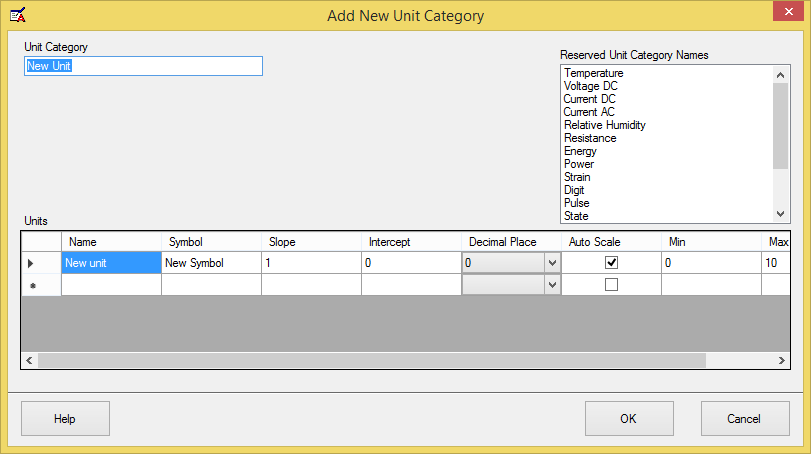
Specify the name of the new unit
category.
Specify the list of the new units under the new unit
category.
Specify the list of the existing
category names. A new unit category name must be
unique.
Click to close the dialog without adding
the new unit category.
Click to close the dialog and add the new
units.
Click to display the
help.Export Units
Dialog
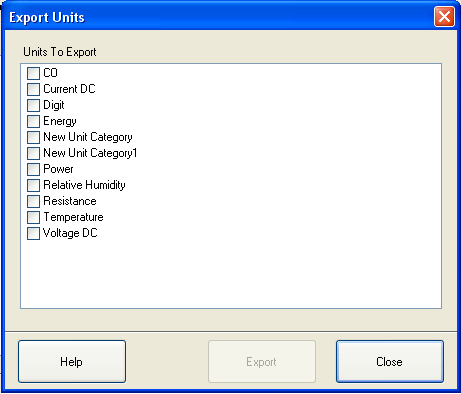
A list of all unit
categories. Check any item to include it in the exporting
list.
Click to close the
dialog.
Click to export the selected units to a
unit pack file.
Click to display the
help.Import Units Dialog
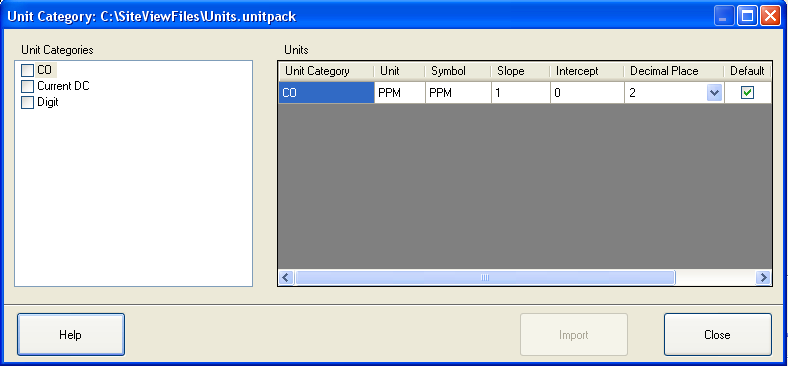
A list of the unit
categories contained in the unit pack file. Check any one to include it in the
importing list.
A
list of units under the selected unit category.
Click to close the
dialog.
Click to import the selected unit
categories to the system.
Click to display the
help.