Tags: PRECISE-LOG

PLC and SCADA Integration of USB Data Loggers Using Smart-Hub

PLC and SCADA Integration of USB Data Loggers Using Smart-Hub

MEI 21/10/2026 0
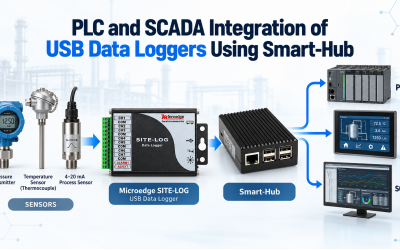
PLC and SCADA Integration of USB Data Loggers Using Smart-Hub Many industrial monitoring systems already use PLCs, HMIs, or SCADA software as the main supervisory platform. At the same time, standalone USB data loggers may already be installed for temperature, voltage, current, humidity, pulse, state, or other measurements.Microedge Smart-Hub provides a practical way to connect supported USB data loggers to an Ethernet network and make their real-time measurements available to industrial systems through Modbus TCP.This Application Note shows how a USB data logger can be integrated into a PLC or SCADA system using Smart-Hub as a communication gateway.  1. Application A typical application may already include one or more USB data loggers installed close to sensors or equipment.Examples include:Temperature monitoring4–20 mA process transmittersVoltage monitoringRelative humidityEquipment state monitoringPulse or event countingLaboratory or test-system measurementsThe customer may want these measurements to become available to an existing:PLCHMISCADA systemIndustrial PCBuilding-management systemCustom Modbus TCP applicationInstead of replacing the USB data loggers, they can be connecte...

Read More
How to Use Access Point (AP) of Data Logger

How to Use Access Point (AP) of Data Logger

MEI 03/06/2019 0
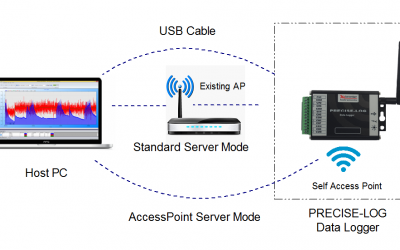
Recently, PRECISE-LOG data loggers were upgraded with a new communication feature called 'AccessPoint Server' mode. In this mode, the data logger will provide an Access Point for host computer to join in order to make a quick and easy point-to-point communication.To use this new feature, please download the new version of SiteView software (version 4.1.3) and upgrade PRECISE-LOG with new firmware version 2.04.The followings are the detailed steps to communicate with PRECISE-LOG data logger through 'AccessPoint Server' mode:Click on 'Configure' button on the logger's status toolbar:Click 'WIFI Settings' tab and choose 'AccessPoint Server' mode:Note that the 'AP SSID' is read only and your host PC needs to connect to this access point. The login password is the one you set below 'AP SSID' field.The logger's IP address is fixed to '10.10.100.254'Change 'AP Password' as needed. Minimum length:8 characters.Click 'Save WIFI settings' button.This will save the settings to the logger. Please wait a minute for the logger to establish its WIFI access point (AP).From the host computer, open the WIFI network list to look for an access point named 'PL' + 'Serial Number of the logger'Click the a...
Read More